Buying Guide
Choosing among the best dual-port kvm switches starts with the monitors and computers already on your desk. These devices are not interchangeable simply because they all control two computers. The video connectors, number of outputs, USB path, operating system, and display mode determine whether a particular switch fits the setup.
Confirm the two-display layout
First identify whether each computer can drive two monitors at the same time. Several selected models explicitly require two video outputs from every computer. A switch does not create a second independent display output when the source computer lacks the necessary graphics capability.
The UGREEN AK700 uses two DisplayPort connections per computer. The UGREEN AK703 uses two HDMI connections per computer. The GREATHTEK S7240PH2 takes a different approach, using one HDMI and one DisplayPort monitor for each computer. That mixed-output arrangement may be useful when the monitors do not share the same connector standard.
Docking-style models can simplify laptop connections, but they still depend on source-port capabilities. The AV Access KD-E20, ANGEET, and Camgeet models document USB-C inputs and MST-related requirements. Confirm that the laptop USB-C port supports video output before selecting a USB-C design.
Match the video standard to your monitors
Resolution and refresh-rate claims should be read as maximum specifications rather than universal operating settings. UGREEN AK700 documents up to 8K at 60Hz and 4K at 240Hz through DisplayPort. The UGREEN AK703 and CENMATE HDMI switch also list 8K at 60Hz and 4K at 240Hz. JCYMELE specifies 4K at 144Hz and 8K at 60Hz, while GREATHTEK lists 4K at 144Hz and 8K at 60Hz for its mixed HDMI-and-DisplayPort design.
If your priority is high-refresh gaming or motion-heavy work, start with the connector standard and monitor refresh target, then verify the required cable specification. If your monitors are standard 4K 60Hz displays, more modest models such as the Unitek can still provide the documented dual-screen function without requiring a high-refresh monitor configuration.
Count the shared peripherals
Every selected switch shares a keyboard and mouse, but the number and type of additional USB ports vary. UGREEN AK700 and AK703 provide four USB 3.0 ports, with one USB-C port included in each listing.
The ANGEET and Camgeet switches go further by specifying four USB 3.2 ports with transfer rates up to 10Gbps. That can suit a desk using a printer, storage device, camera, or other higher-speed accessory, although actual transfer behavior also depends on the connected computer and device.
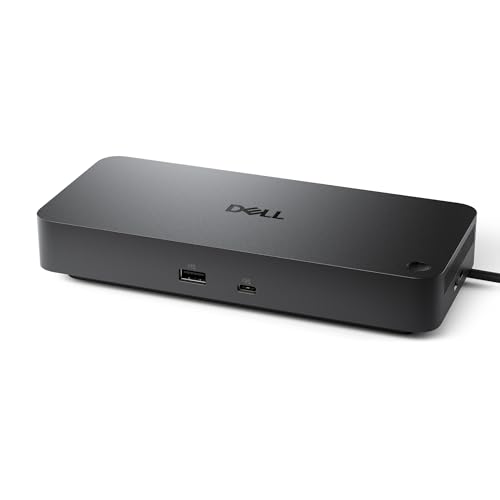
Docking models are the broadest choice when the KVM should also carry network, storage, audio, or charging connections. AV Access KD-E10 and KD-E20 list Gigabit Ethernet, SD card, audio, USB-A, USB-C, and USB 2.0 connections. AV Access iDock B10 also lists Ethernet, SDXC, audio, and several USB connection types.
Compare switching controls
All selected products document a physical switching method. Many add a wired desktop controller, which lets you place the main unit away from the center of the desk. UGREEN AK700, UGREEN AK703, CENMATE, JCYMELE, and GREATHTEK all list panel and external-controller switching.
Some docking KVMs document EDID emulation or adaptive behavior. AV Access KD-E10, AV Access KD-E20, and AV Access iDock B10 list EDID-related functions and automatic computer wake-up. GREATHTEK lists EDID adaptive technology. By contrast, UGREEN AK700 and AK703 explicitly state that EDID emulation is not supported, and CENMATE states that keyboard hotkeys are not supported. These differences matter if your computers need a particular display-handling or switching workflow.
Check operating-system limitations
The listings commonly mention Windows, Linux, and macOS compatibility, but that does not mean every operating system receives identical display behavior. Several USB-C docking designs state that macOS is limited to mirrored displays because of MST limitations. AV Access iDock B10 also documents macOS mirror-only behavior, while its Windows and Linux notes support extended mode.
The Unitek V1311A is more restrictive in another way: its listing says it is designed for desktop hosts and is not compatible with laptops. Read those limitations alongside the physical port requirements rather than relying on the operating-system list alone.
Plan the cable and power requirements
Dual-monitor KVMs usually require more cables than a single-monitor switch. UGREEN’s HDMI models require two HDMI cables and one USB-A connection per computer. DisplayPort models generally require two DisplayPort cables and one USB connection per computer. External power is also common, particularly when several USB devices are connected. The selected products list power adapters or powered docking arrangements, but included video cables differ, so inspect the package details before installation.
Final Recommendation
AV Access 8K KVM Switch iDock B10 ranks first overall in this specification-based comparison under the published weighted criteria.
UGREEN 8K DisplayPort KVM Switch AK700 is the first overall specification-based choice among these best dual-port kvm switches because it combines dual-display support, a high documented DisplayPort ceiling, four USB 3.0 ports, and two switching methods. It is the clearest fit for a two-DisplayPort setup that needs high refresh support.
Choose AV Access iDock B10 when the workstation also needs Ethernet, storage, audio, charging, and mixed HDMI-and-DisplayPort connectivity. Choose CENMATE when HDMI 2.1, 8K, HDR, and variable-refresh features are central. For two USB-C laptops, AV Access KD-E20, ANGEET, and Camgeet offer laptop-oriented layouts, but source-port and macOS limitations should be checked first.
Among the top dual-port kvm switches, JCYMELE is a focused DisplayPort option for 4K high-refresh monitors, while GREATHTEK suits a mixed HDMI-and-DisplayPort monitor pair. Unitek is the most clearly desktop-specific selection in this group. The right choice is therefore determined less by the product name than by the exact video outputs, monitor inputs, operating system, and USB devices in your setup.
Frequently Asked Questions
What are the best dual-port kvm switches for two 4K monitors?
The supplied specifications point to several suitable designs, including UGREEN AK700, UGREEN AK703, CENMATE, AV Access KD-E10, and AV Access KD-E20. Check whether your computers use DisplayPort, HDMI, or USB-C, and verify whether extended display mode is supported by the source systems.
Can a dual-port KVM create two independent screens from one laptop?
Not by itself. The laptop must support the required dual-display function through its available video or USB-C ports. The ANGEET, Camgeet, AV Access KD-E20, and related USB-C models specifically describe DP Alt Mode or MST requirements. macOS limitations may result in mirrored rather than extended displays.
Do all dual-monitor KVM switches support high refresh rates?
No. The listed products vary considerably. Match the switch specification to the monitor’s intended resolution and refresh rate, and use compatible cables.
Is EDID emulation important in a dual-monitor KVM?
EDID-related features can help a KVM manage display identification when switching between computers, but support is model-specific. AV Access KD-E10, KD-E20, and iDock B10 document EDID functions, while UGREEN AK700 and AK703 state that EDID emulation is not supported. Consider this feature when your setup is sensitive to display re-detection.
How many cables does a two-computer, two-monitor KVM need?
The exact count depends on the design. Dual-HDMI and dual-DisplayPort models commonly require two video cables plus one USB connection for each computer. Mixed-output and USB-C docking models use different arrangements. Check each selected model’s connection notes and package contents before setting up the desk.