Buying Guide
The best plug-and-play laptop docking stations are not interchangeable. The right choice depends first on the laptop’s host port, then on the displays, accessories, and operating system you plan to connect. A USB-C port may support charging and data but lack DisplayPort Alt Mode, so confirm the laptop documentation before relying on external video.
Start with the host connection
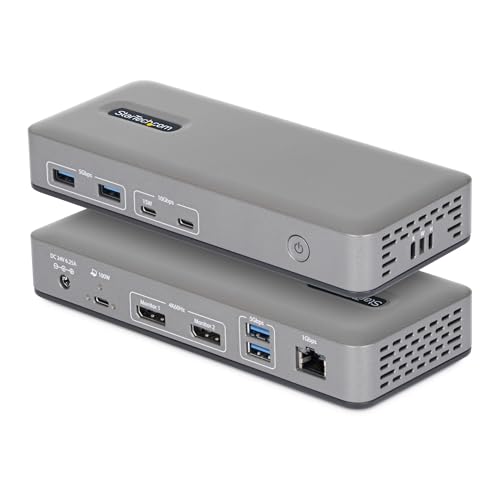
USB-C, USB4, and Thunderbolt describe connection families, not identical capabilities. The StarTech USB4 Dock is intended for USB4 and Thunderbolt 4 or 5 hosts, while the StarTech USB-C DisplayPort and HDMI docks are designed for Windows USB-C deployment. Acer, Anker, UGREEN, and TobenONE specify full-function USB-C or compatible USB4 and Thunderbolt connections for video-capable systems.
A host port with DisplayPort Alt Mode can send native video through a compatible dock. The evidence for the two StarTech USB-C models specifically describes uncompressed video powered by the laptop’s native GPU. Other models use different approaches or impose operating-system limits, so do not assume that every USB-C port supports the same number of screens.
Match the dock to your displays
For demanding high-refresh work, the StarTech USB4 Dock documents dual 4K at 144Hz or one 8K display at 60Hz. For a Windows office with HDMI screens, the StarTech HDMI Dock provides two 4K 60Hz outputs. The DisplayPort version offers the same stated dual-4K 60Hz capability through DisplayPort connectors.
Triple-display users have several selected options. Plugable combines one 4K 30Hz HDMI output with two 1080p 60Hz outputs and uses DisplayLink for additional displays. Acer supports three outputs through two HDMI ports and DisplayPort, with triple 4K 30Hz noted for compatible Windows systems using DSC. Anker’s detachable Nano Dock supports one 4K 60Hz display, two 2K 60Hz displays, or three 1080p 60Hz displays. TobenONE provides two 4K HDMI outputs.
Read the fine print for Mac systems. The UGREEN 10-in-1, Anker 565, Acer, and several other USB-C docks document mirrored external displays or other restrictions on macOS. Plugable supports macOS but requires DisplayLink software for external displays. TobenONE is documented for Windows and ChromeOS rather than Mac use.
Count the ports you will actually use
Port count matters when a dock stays on a desk. TobenONE has 19 total ports and 10 USB connections, making it suited to a keyboard, mouse, storage drive, printer, webcam, and other peripherals remaining attached. Plugable provides six USB 3.0 ports, while Acer adds USB connections, Ethernet, audio, SD, and microSD readers.
The Anker 565, UGREEN 10-in-1, and Anker Nano models are useful when removable storage is part of the workflow. Their SD or microSD readers avoid a separate reader, although the Anker 565 is the only one here with a supplied transfer figure for those readers. The StarTech docks prioritize office connectivity and high-speed USB rather than card slots.
Check charging requirements
Charging figures describe the dock’s maximum pass-through capability, not necessarily the wattage delivered in every setup. StarTech USB4 and both StarTech USB-C docks specify 100W laptop charging. Dell WD25 also specifies up to 100W. Acer includes a 110W adapter and documents 100W to the laptop, while Anker’s detachable Nano Dock includes a 140W adapter and supports up to 100W.
Some selected docks require your own charger. UGREEN’s 10-in-1 accepts 100W input and provides up to 85W to the laptop. Anker 565 also supports up to 85W and requires a charger. TobenONE documents 100W pass-through but says a 65W-or-higher adapter is required and not included. Check both the laptop’s charging requirement and the dock’s included accessories.
Consider setup and desk placement
Driverless operation is valuable when a dock will move between users or computers. StarTech’s three selected docks emphasize driverless deployment, while TobenONE also documents plug-and-play use for Windows and ChromeOS. Plugable’s triple-display model is broader across operating systems but needs macOS software for DisplayLink displays.
For a permanent office, mounting and security features can matter more than a small footprint. The StarTech models document lock slots and surface or VESA mounting support. Acer includes a security slot. Dell adds an ambidextrous cable route, and Anker’s detachable design serves both desk and travel use. Compact hubs such as the UGREEN 10-in-1 and Anker 565 are easier to carry but may require a separate charger and cable.
Final recommendation
StarTech Driverless USB4 Dock ranks first overall in this specification-based comparison under the published weighted criteria.
The final choice among the best plug-and-play laptop docking stations depends on the documented features that match your intended use.
StarTech Driverless USB4 Dock is the highest-scoring returned product and the first overall specification-based choice. It combines the broadest documented display performance with 2.5GbE, 100W charging, driverless Mac and Windows support, and deployment features.
For HDMI-first Windows desks, choose StarTech USB-C Dual 4K HDMI Dock. For DisplayPort screens, StarTech USB-C Dual 4K DisplayPort Dock is the more direct match. Dell Pro Docking Station WD25 deserves consideration when up to four displays and commercial manageability are central requirements.
Among the top plug-and-play laptop docking stations for mixed operating systems, Plugable USB-C Triple Display Dock has the broadest stated OS coverage, while Acer 13-in-1 Triple Display Dock adds card readers and an included adapter. Anker Nano 13-in-1 Detachable Dock is the flexible desk-and-travel option. TobenONE 19-in-1 Dual HDMI Dock suits accessory-heavy Windows or ChromeOS desks. UGREEN 10-in-1 Dual HDMI Dock and Anker 565 11-in-1 USB-C Hub are compact choices when Ethernet, card readers, and multiple USB data connections matter.
Frequently Asked Questions
What should I verify before choosing the best plug-and-play laptop docking stations?
Verify the laptop’s USB-C, USB4, or Thunderbolt capabilities, including DisplayPort Alt Mode and Power Delivery. Then match the dock’s HDMI or DisplayPort outputs to your monitors, check the operating-system restrictions, and confirm whether a power adapter is included.
Do these docks support extended displays on Mac?
Not uniformly. The StarTech USB4 Dock documents Mac and Windows support, while several USB-C models document mirrored displays on macOS. Plugable supports macOS with DisplayLink software for external displays. Always compare the dock’s stated Mac behavior with the exact laptop model.
Is a 100W dock enough to charge any laptop?
The dock’s maximum pass-through figure does not guarantee that every laptop receives 100W. Laptop requirements, the connected charger, and power reserved for dock operation all affect the result. Some models, including UGREEN and Anker 565, specify up to 85W to the laptop.
Which selected dock has the most USB ports?
TobenONE 19-in-1 Dual HDMI Dock documents 10 USB ports. It is designed for Windows and ChromeOS and supports dual 4K HDMI output, Gigabit Ethernet, card readers, audio, and 100W pass-through charging when paired with a suitable adapter.
Are DisplayLink docks driverless?
No general assumption is safe. Plugable’s triple-display model uses DisplayLink for additional monitors and requires software on macOS. The StarTech driverless models explicitly emphasize no-driver operation, but compatibility still depends on the laptop and operating system.