Buying Guide
Choosing among the best laptop internal hard drives starts with identifying what your laptop can physically and electrically accept. The products in this comparison are internal 2.5-inch SATA drives: some use solid-state flash, while others use spinning magnetic platters. A laptop with an M.2-only layout will not accept these drives, so check the service manual or existing drive before selecting one.
Confirm the interface and bay
SATA III, also written as SATA 6Gb/s, is the dominant interface documented across the selected products. SATA II backward compatibility is specifically listed for the Kingston A400 and PNY CS900, which may help when working with older systems. Interface compatibility does not by itself confirm that every laptop will accept a replacement, however. Check the connector, mounting points, caddy, and cable arrangement.
Height is equally important. The Silicon Power A55 and Kingston A400 are identified as 7mm designs, and the A400 is specifically positioned for slimmer notebooks. Several other selected SSDs list heights around 0.27 or 0.28 inches. The Seagate BarraCuda Pro, Seagate BarraCuda, and WD Blue Mobile are also listed as 2.5-inch laptop-oriented drives. A thicker bay may accept more options, but a tight ultrathin bay needs careful measurement.
Choose SSD or mechanical HDD
Solid-state drives are the more common design in this ranking. Samsung 870 EVO, Crucial BX500, Silicon Power A55, KingSpec P3, PNY CS900, Kingston A400, and ORICO Y20 all use flash storage. Their listings emphasize faster booting, application loading, or transfer performance compared with traditional hard drives. SSDs have no spinning platter in their documented design, which makes them a different fit for users concerned with moving a laptop or replacing an older mechanical drive.
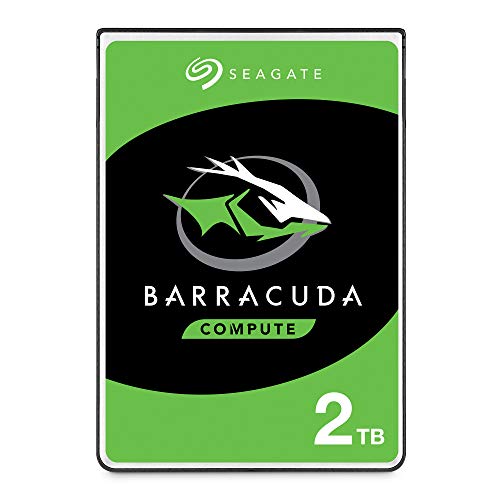
Mechanical HDDs remain represented by the Seagate BarraCuda Pro, Seagate BarraCuda, and Western Digital WD Blue Mobile. These drives use spindle speeds of either 7200 RPM or 5400 RPM. The BarraCuda Pro lists 7200 RPM and a 128MB cache, while the BarraCuda and WD Blue Mobile list 5400 RPM and 128MB cache. The mechanical format can provide substantial capacity in a familiar laptop form, but the spinning-drive design is a specification trade-off compared with flash storage.
Match capacity to your files
Capacity should reflect the operating system, applications, media, and documents you expect to keep locally. The selected drives range from 480GB to 2TB, with several 1TB options. The Crucial BX500, Silicon Power A55, KingSpec P3, PNY CS900, ORICO Y20, Seagate BarraCuda Pro, and WD Blue Mobile each list 1TB. The Seagate BarraCuda provides 2TB, making it the capacity-focused choice among the selected products.
The Samsung 870 EVO lists 250GB, and the Kingston A400 lists 480GB. Those capacities can suit a system drive or a lighter local library, but they leave less headroom than the 1TB and 2TB models. Remember that advertised capacity and usable operating-system space are not identical.
Compare documented speed carefully
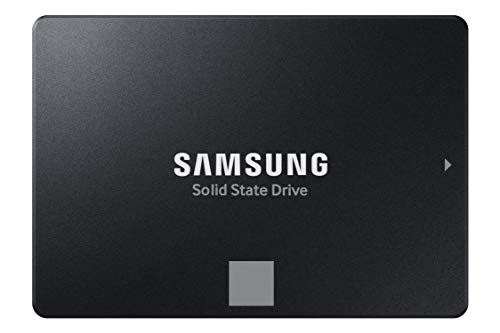
SATA limits the general interface class, so compare the figures supplied for each drive rather than assuming all models perform identically. Samsung lists up to 560MB/s read and 530MB/s write. KingSpec lists up to 570MB/s read and 540MB/s write, while Crucial lists up to 540MB/s. PNY lists up to 535MB/s read and 515MB/s write. These are listing specifications, not independent measurements, and actual results can depend on the laptop, operating system, capacity, and workload.
The ORICO Y20 lists up to 500/480MB/s, and Kingston A400 lists up to 500/450MB/s. Silicon Power provides 3D NAND and SLC cache information but does not supply comparable sequential figures in the provided evidence. Mechanical models are described through spindle speed and cache rather than SSD-style sequential figures. That difference is useful when deciding whether your priority is flash storage responsiveness or a conventional high-capacity drive.
Check compatibility and software details
Compatibility evidence varies. ORICO lists support for Windows 11, Windows 10, Windows 8, Vista, XP, macOS, and Linux. KingSpec lists Windows, Linux, and Mac OS support. Samsung describes compatibility testing across major host systems and applications. WD cites F.I.T. Lab certification for a range of high-performance PC configurations, and PNY identifies SATA II backward compatibility.
Migration tools can also matter during an installation. Samsung lists Magician software for drive-health monitoring, firmware updates, and management. WD lists Acronis True Image WD Edition cloning software. These features do not replace a backup, and the provided evidence does not establish installation results for any particular laptop. Back up important data before opening the laptop or cloning a system.
Review warranty and endurance documentation
Warranty terms differ across the selection. Samsung’s listing includes a five-year limited warranty claim and up to 600 TBW, while Crucial, Silicon Power, Kingston, PNY, ORICO, and KingSpec list three-year coverage. The Seagate BarraCuda Pro lists five-year limited coverage and two years of Rescue Data Recovery Services. The Seagate BarraCuda lists two-year limited coverage, and WD’s supplied warranty text does not provide a standard limited-warranty term.
Treat these statements as product-listing specifications. Registering a product may be required for some coverage, as noted by Silicon Power. Also check the current manufacturer terms and the exact model number before installation.
Final Recommendation
Samsung 870 EVO 250GB SATA SSD ranks first overall in this specification-based comparison under the published weighted criteria.
Samsung 870 EVO is the first overall specification-based choice among these best laptop internal hard drives. Its 2.5-inch SATA fit, high documented sequential figures, compatibility testing, management software, and detailed endurance information give it the most complete evidence set in this comparison.
Choose the Crucial BX500 or Silicon Power A55 when 1TB capacity is more important than the Samsung’s smaller listed capacity. The KingSpec P3, PNY CS900, ORICO Y20, and Kingston A400 offer distinct combinations of speed, operating-system support, low-power positioning, or slim-bay fit. For users specifically seeking a mechanical drive, the Seagate BarraCuda Pro is the more performance-oriented documented option, while the Seagate BarraCuda supplies 2TB. The WD Blue Mobile is a conventional 1TB mobile HDD with cloning software and configuration-certification information.
The top laptop internal hard drives are not interchangeable in every laptop. Verify the bay height, SATA connector, mounting hardware, and required operating-system support before choosing. The best laptop internal hard drives for one notebook may be unsuitable for a system built only for M.2 storage.
Frequently Asked Questions
Are these best laptop internal hard drives compatible with every laptop?
No. The selected products are 2.5-inch SATA drives, so the laptop must have a matching SATA bay and connector. Confirm physical clearance and the mounting arrangement before ordering. An M.2-only laptop needs a different drive type.
Is an SSD or HDD better for a laptop replacement?
The evidence shows SSD listings emphasizing boot, application-load, and transfer improvements compared with traditional hard drives. HDD listings instead emphasize capacity, spindle speed, and cache. An SSD may suit users focused on flash-storage responsiveness, while an HDD may suit users who specifically need a conventional 2.5-inch storage device or the 2TB capacity of the Seagate BarraCuda.
Which selected drive has the largest capacity?
The Seagate BarraCuda 2TB lists the largest capacity in the returned selection. It is a 2.5-inch SATA HDD with 5400 RPM operation and a 128MB cache. Confirm that the laptop supports the drive’s physical height and storage capacity before installation.
Which models document support for multiple operating systems?
ORICO Y20 lists Windows, macOS, and Linux support. KingSpec P3 lists Windows, Linux, and Mac OS support. These statements come from the supplied product listings and do not guarantee compatibility with every laptop configuration.
What should be checked before replacing a laptop drive?
Check the existing drive type, SATA connector, bay height, mounting points, and available system space. Back up important files before cloning or replacing the drive. Also review the manufacturer’s current warranty requirements, since some listings indicate that registration may be needed for complete coverage.